Registering a new user
To register in Boost, go to https://boost.yandex.com.
If you switched to Boost from the YAN Partner Interface, the registration form will open. Review the service agreement terms, accept them, and then proceed to the dashboard.
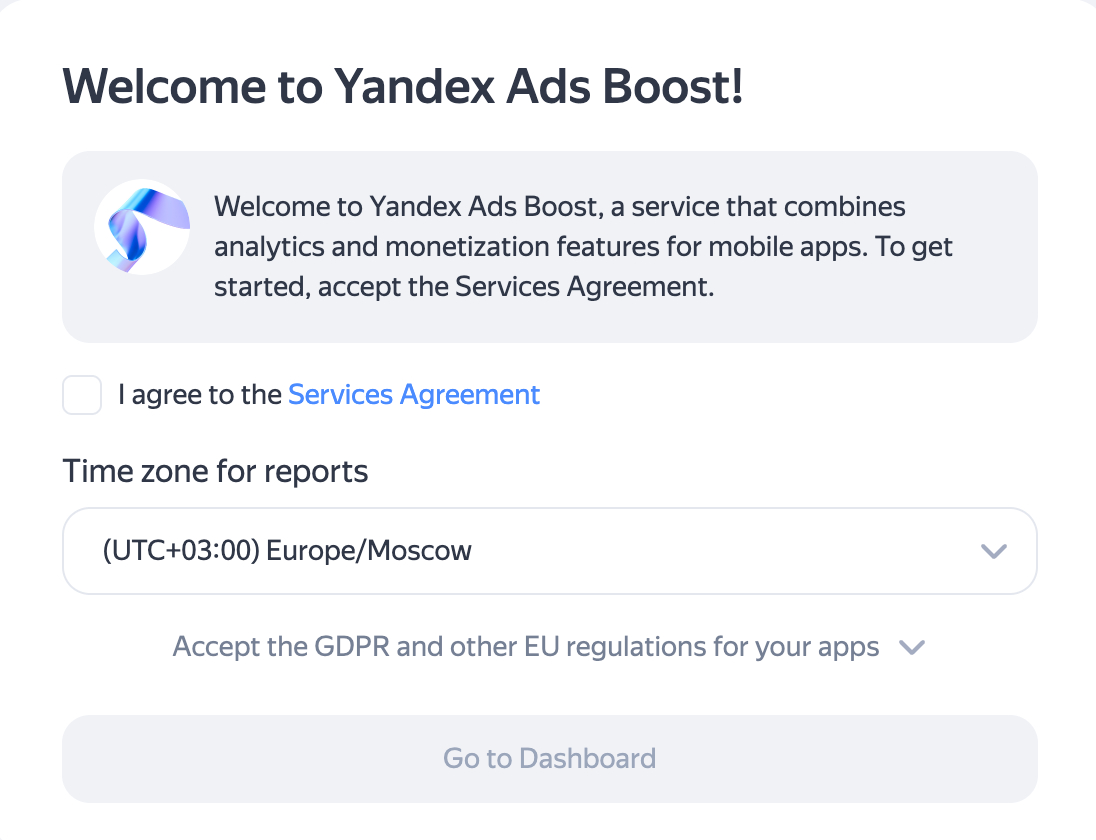
Users who switched from AppMetrica need to complete additional registration.
-
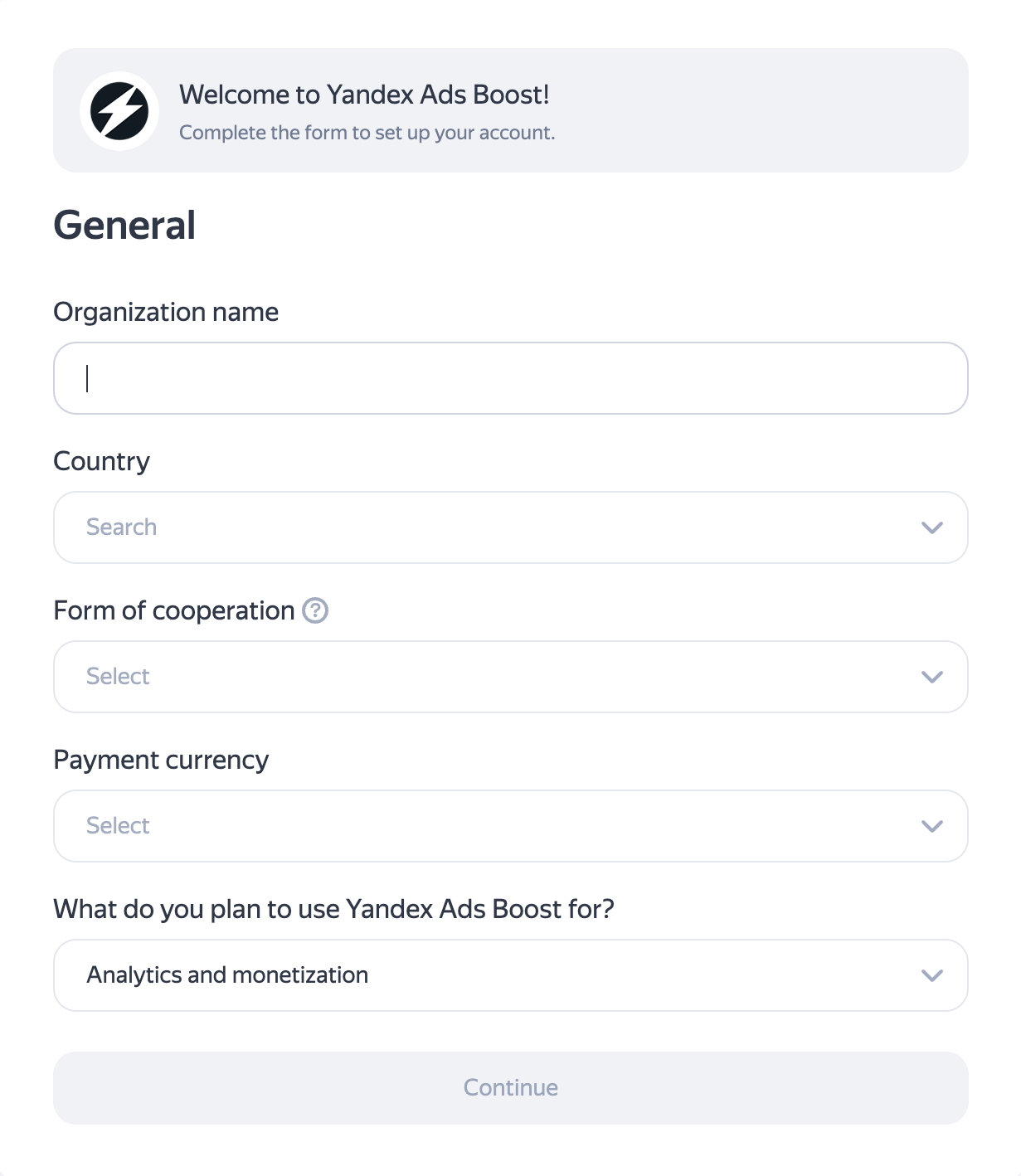
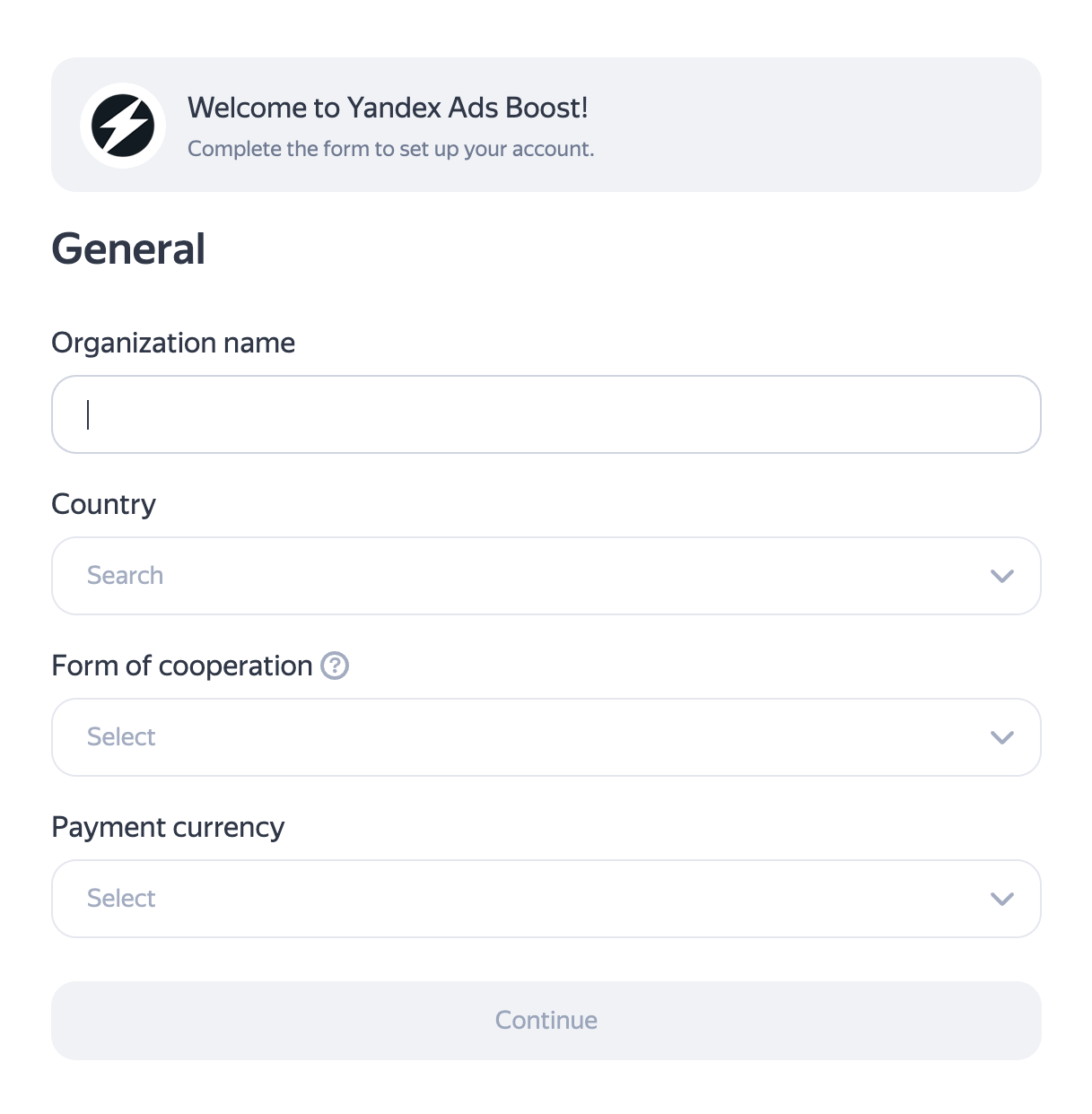
General. Describe your company:
- your organization's name. If it's registered outside Russia, use Latin characters;
- the country where it's located. For companies registered in Russia, specify the region;
- select the organization form and payment currency.
-
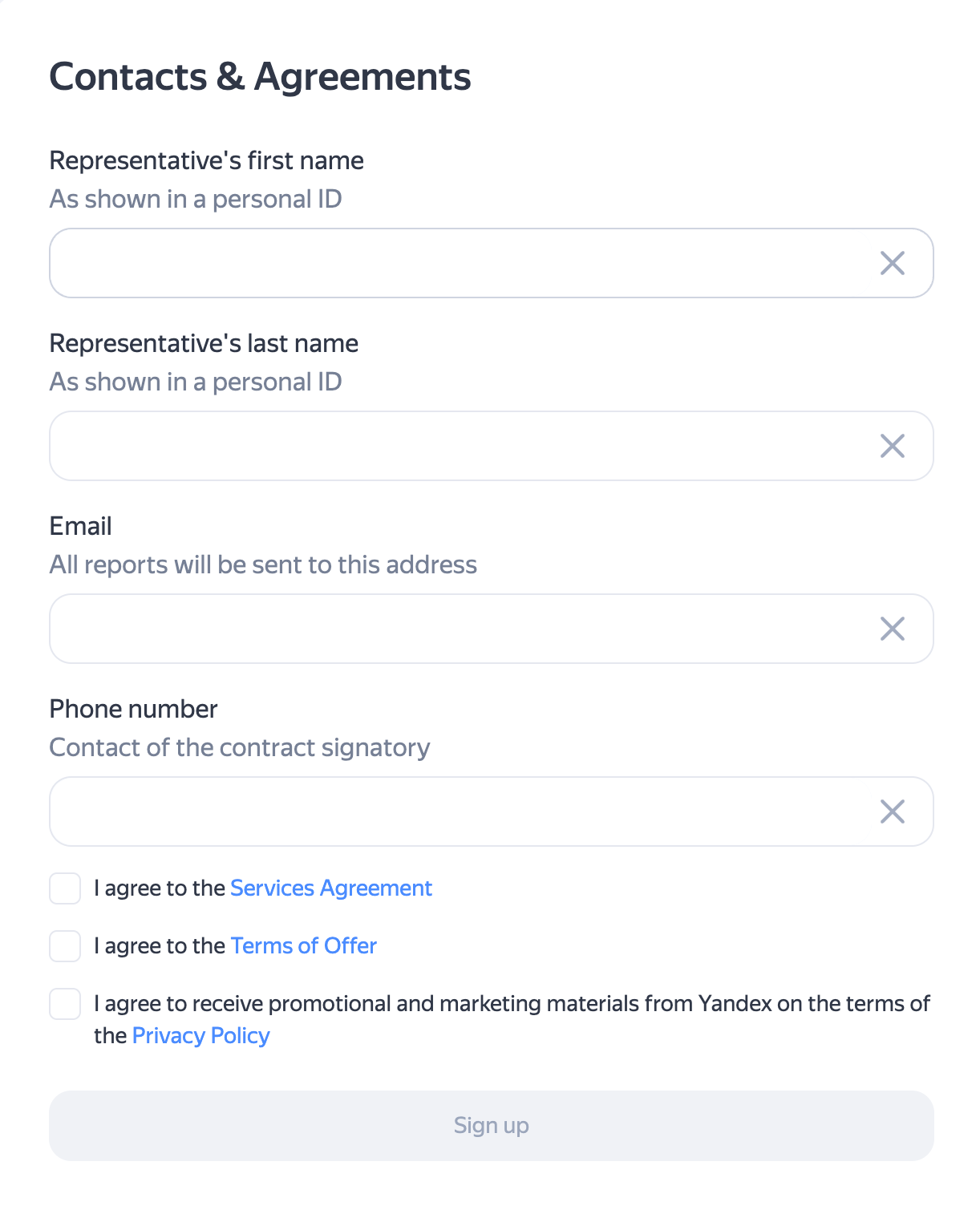
Contacts & Agreements. Fill out your profile:
- specify the company representative's first and last name as they appear in their ID document. Users from Russia and Belarus also need to specify their patronymic;
- specify the date of birth if you selected a non-legal entity as the form of cooperation;
- provide your email and contact phone number;
- review and accept the service agreement terms.
-
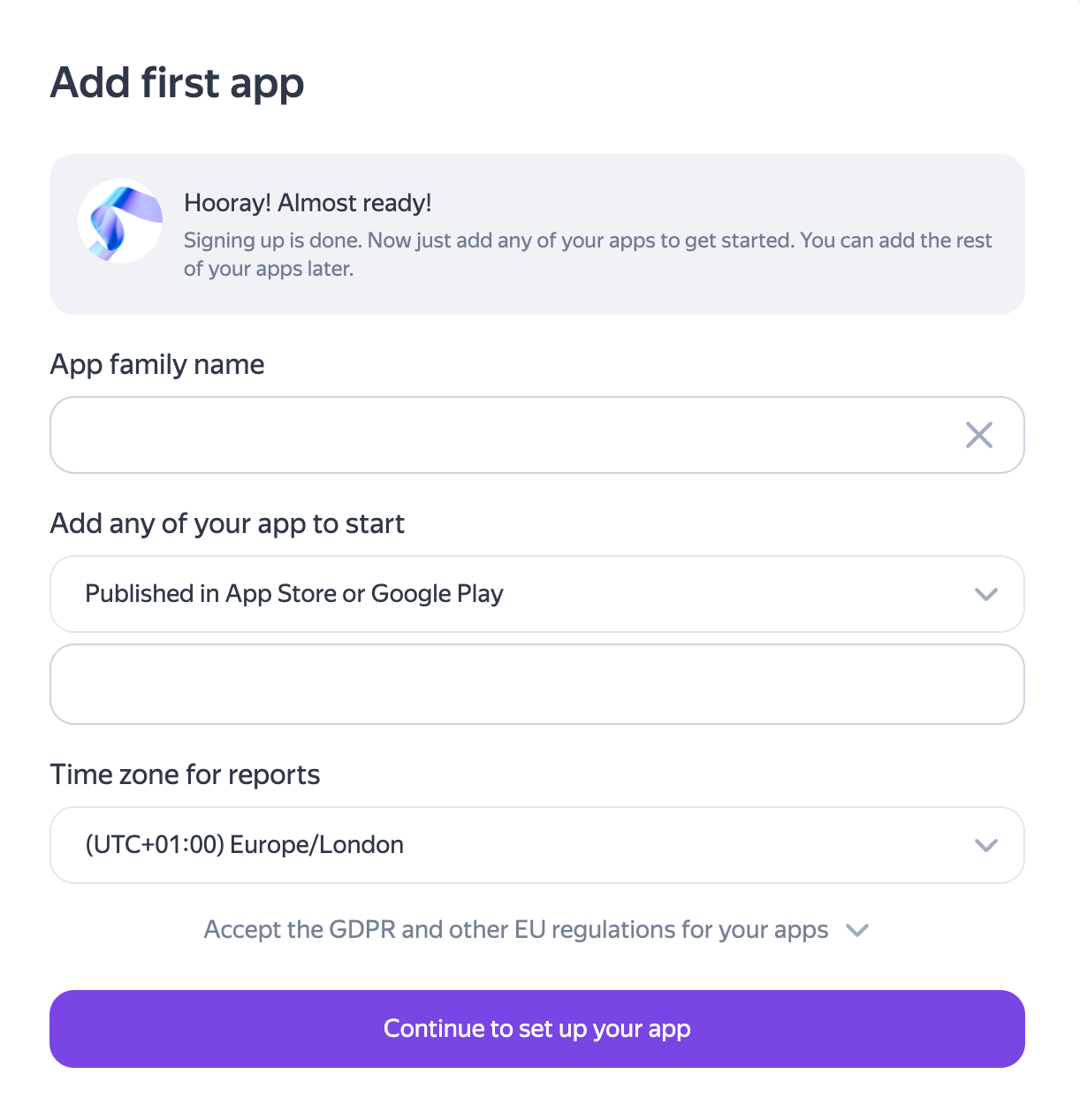
Add first app. Specify the app details:
-
App family name — a common name for a group of applications.
Note
App family combines multiple applications into one group for convenient management and analytics. Enter a name that will be clear to you and your team.
-
Add any of you app to start — specify an app published in App Store or Google Play, or find it by name, ID, or developer.
-
Time zone for reports — select a value from the list.
-
After filling out the Add first app form, a page will open where you can confirm ownership immediately or postpone confirmation by clicking Confirm later.
Then the ad unit addition page will open. Click Create block.
When creating a block, a window will appear offering to add another app or proceed to explore the platform's capabilities.
Choose the appropriate option and continue working with Boost.
4. Last step. Additional
Note
This is an optional step that needs to be completed if you selected only mobile app analytics in step 1.
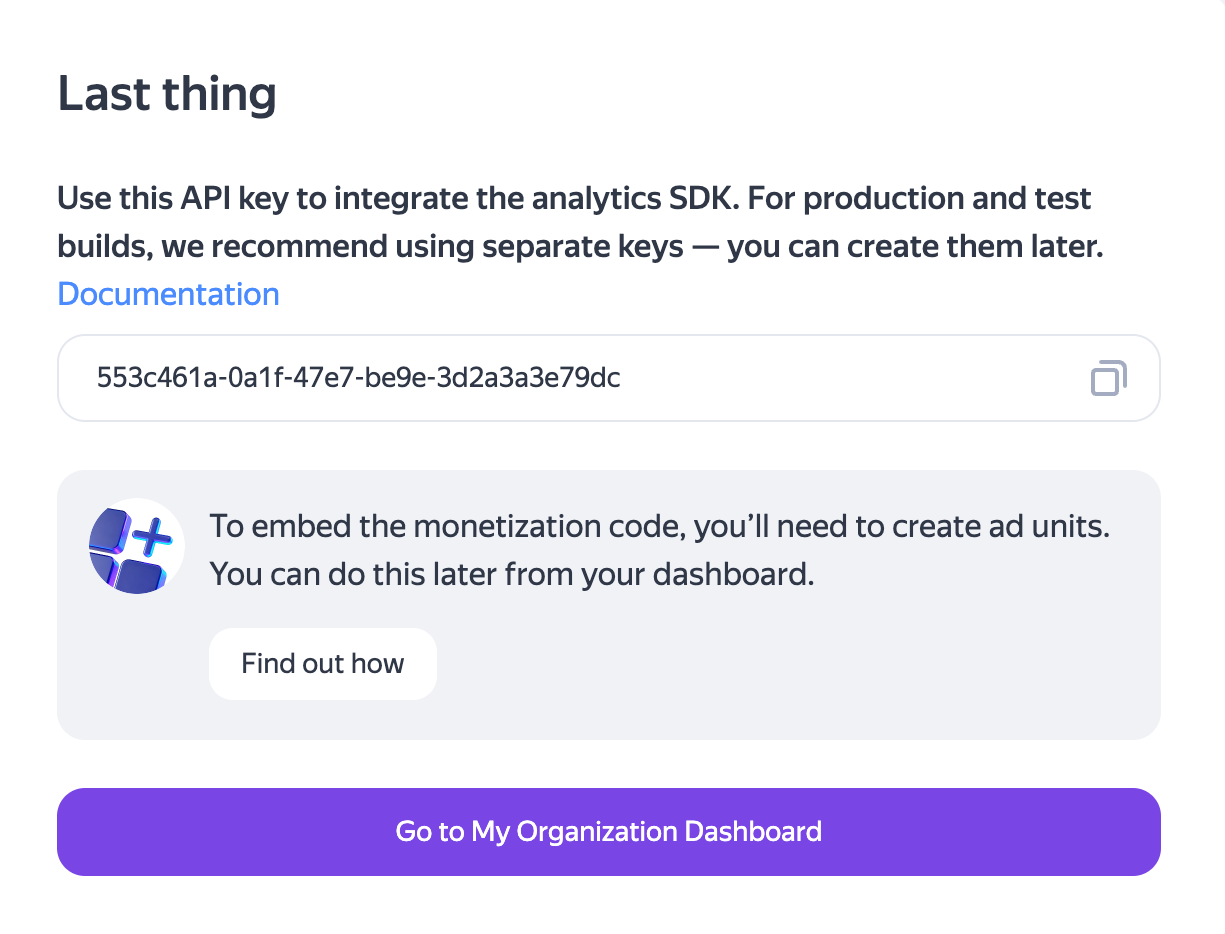
In the window that appears, copy the API key — a unique identifier for your app that allows the service to recognize the app and collect data.
The saved API key will be needed when integrating with Yandex Ads SDK into your app. Installation and setup instructions:
- Ads SDK Integration — for monetization and ad display;
- Analytics SDK Integration — for analytics collection.
Tip
The API key is always available in the App family settings:
- In the upper part of the screen, select the desired App family.
- In the left menu, click Settings → General. The key is located in the API key (for SDK) field.
Confirming ownership
Note
You can confirm ownership later.
-
In the left menu, select the Apps section. In the row with your app, the app status Ownership is not confirmed will be displayed in the Status column.
-
Below the status row, click Confirm and select your preferred verification method:
-
receive a confirmation code to the developer's email by clicking Get code;
-
download the app-ads.txt file and upload it to the developer's website specified in the app store.
If the file already exists, add the lines from the file downloaded from the Yandex Advertising Network to it.
-
Connecting monetization. Additional registration
In the left menu, click Apps → Start monetization. The additional registration form will open.
-
General. Tell us about your company:
- the company name. If the company is registered outside Russia, use Latin alphabet characters;
- the country where it's located. For companies registered in Russia, specify the region;
- select the organization form and payment currency.
-
Contacts & Agreements. Fill out your profile:
- specify the company representative's first and last name as they appear in their ID document. Users from Russia and Belarus also need to specify their patronymic;
- specify the date of birth if a non-legal entity was selected as the form of cooperation;
- provide your email and contact phone number;
- review and accept the service agreement terms.
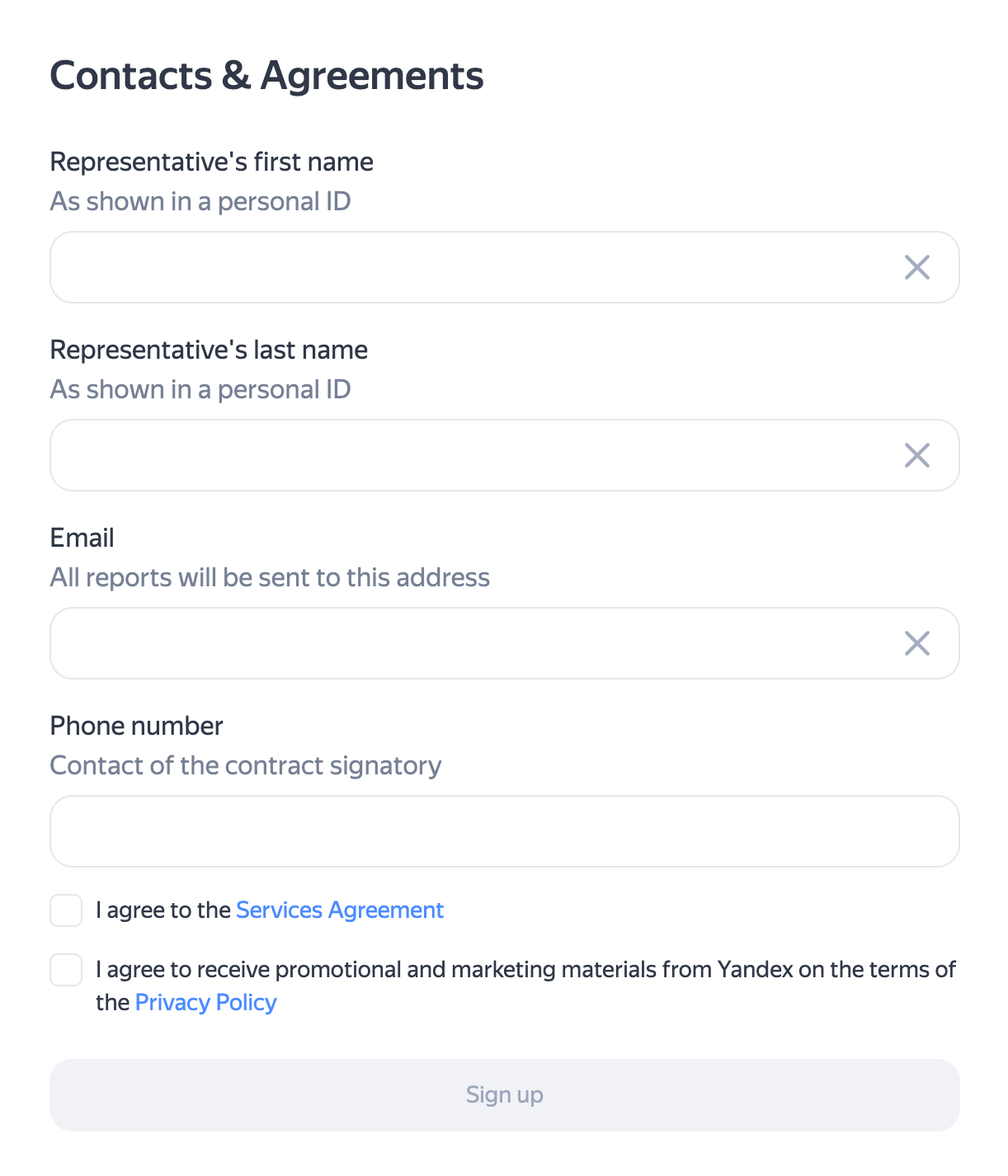
After filling out the form, click Connect.