Organizations and app families
In Boost, you work within the framework of your organization. Multiple applications can be registered for this organization. For convenience, applications are grouped into app families. For example, an app family can unite the same applications on iOS and Android platforms.
Billing and accounting are conducted on an organization level. Data on app installations, events, and monetization are collected and analyzed at the level of app families and applications.
To view the analytics on app families and apps, please use:
You can switch between organizations using the selector at the top of each section.

On the main page, in workspaces and reports, you can also switch between app families or view data for all app families at once.

Access rights
To allow a user to start working with your organization in the Boost interface, you need to grant them access rights.
|
Access |
Rights |
|
Edit |
|
|
View |
|
To view the users list:
-
Ensure that you are in the organization mode, not in a specific app family (the All app families item is selected).
-
In the left menu select the Access section — you can view a list of team members who have access to your organization's data.
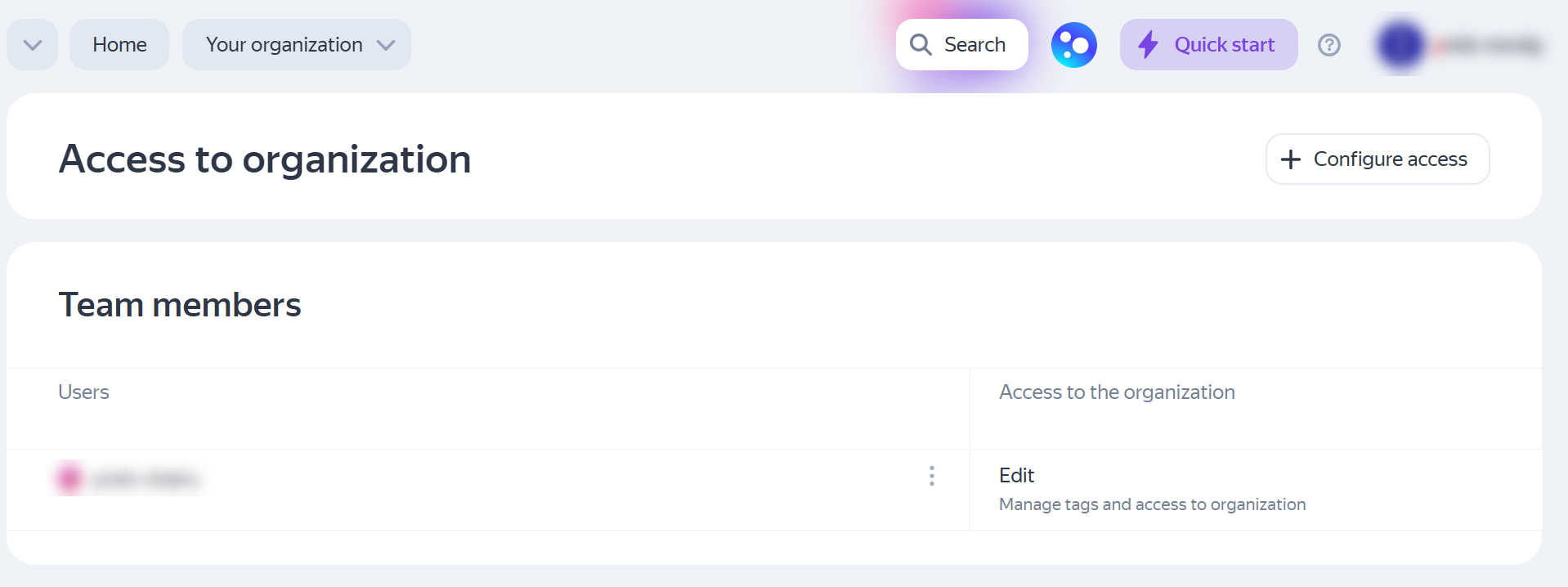
User access rights in the Monetization and Analytics modules are configured separately.
To add employees:
-
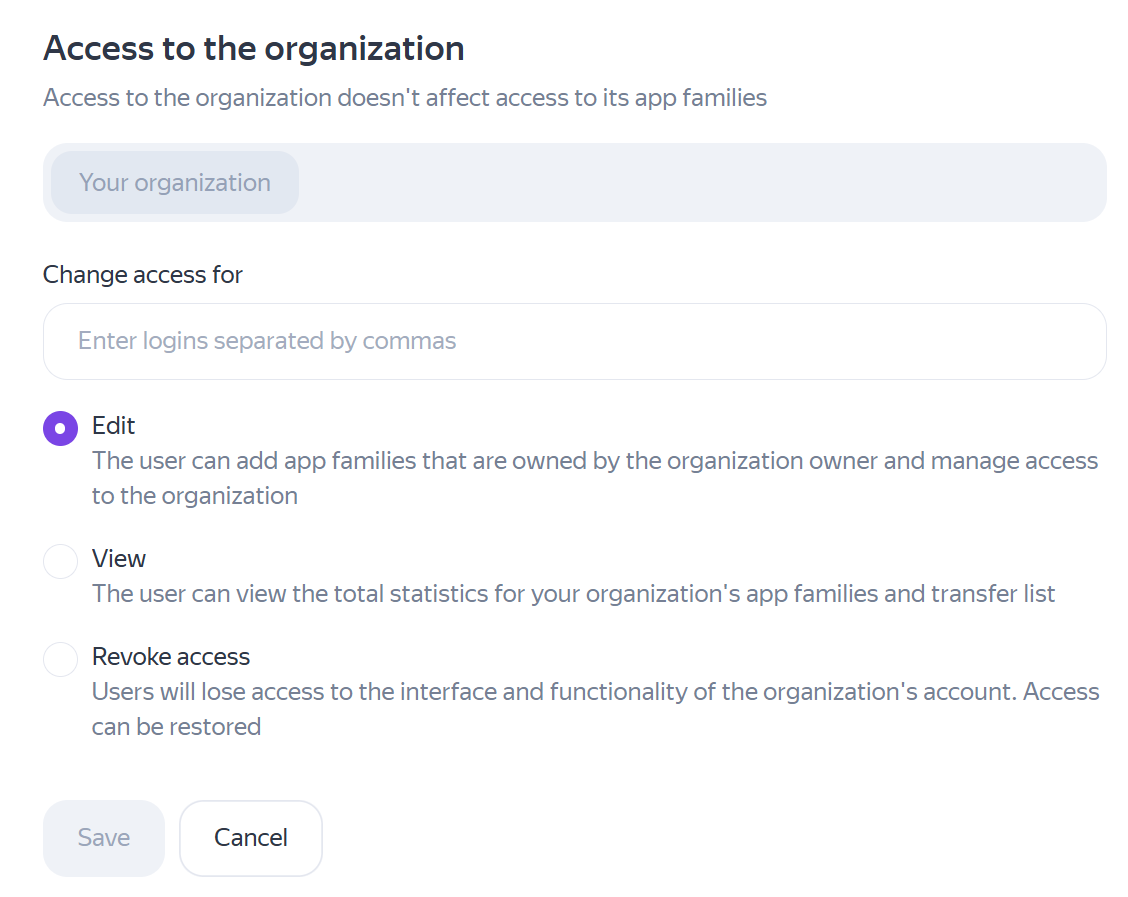
Click + Configure access. In the window that opens, list the employees' emails separated by commas.
-
Select the permissions to grant employees: Edit or View.
If you want to revoke employees' access rights, select Revoke access.
-
Click Save.
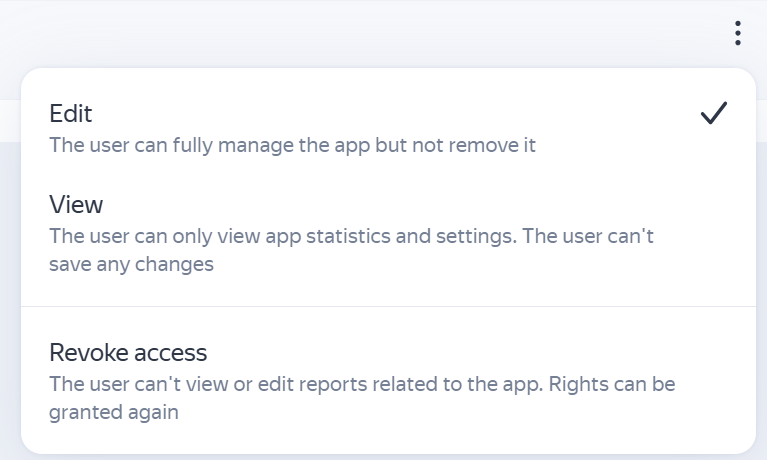
To change the access rights of a employee who is already on the list, click and set the desired permission.