How to use Boost
In Boost, you can work in organization mode or app family mode.
In the organization mode, information on all app families is displayed.

In this mode, the following sections are available in the left menu:
-
Home — organization home page.
-
Analytics:
- Overview — the main workspace with group statistics by organization.
- App families — app families management and advanced analytics.
- Reports — statistics on applications in app family.
- Workspaces — a set of widgets with metrics.
- Billing & Plans.
- Usage limits for all applications.
- Access to analytics — manage access to analytics.
-
Ad Monetization:
- Ad Overview — overview of advertising monetization and balance.
- Apps — application management.
- Ad units — ad block management.
- Report Builder — advertising monetization analytics.
- Notifications — view current notifications.
- Blockings — management of unwanted advertising.
- Bank details — bank details for receiving payments.
- Documents — agreements and financial documents.
- Monetization Settings — download app-ads.txt and notification settings.
- Access to Monetization — Access control to advertising monetization.
-
Access — access management for your organization's users.
-
Settings — here you can change the name of your organization in the Boost service and the address of its website.
If you select a specific app family, you switch to analytics mode.

In this mode, sections are available in the left menu:
- Overview — the main workspace with group statistics for the selected app family.
- Workspaces — a set of widgets with metrics.
- Insights — analyses of your apps’ key metrics, meaningful changes, and notifications.
- Reports — statistics on your application.
- List of profiles
- Tracking — list of trackers and media sources.
- Data export — save to file.
- Settings of the Analytics service.
To find information in the Boost interface, use the search feature or the AI assistant. If you can't find what you're looking for, ask in the support chat.
Search feature in Boost
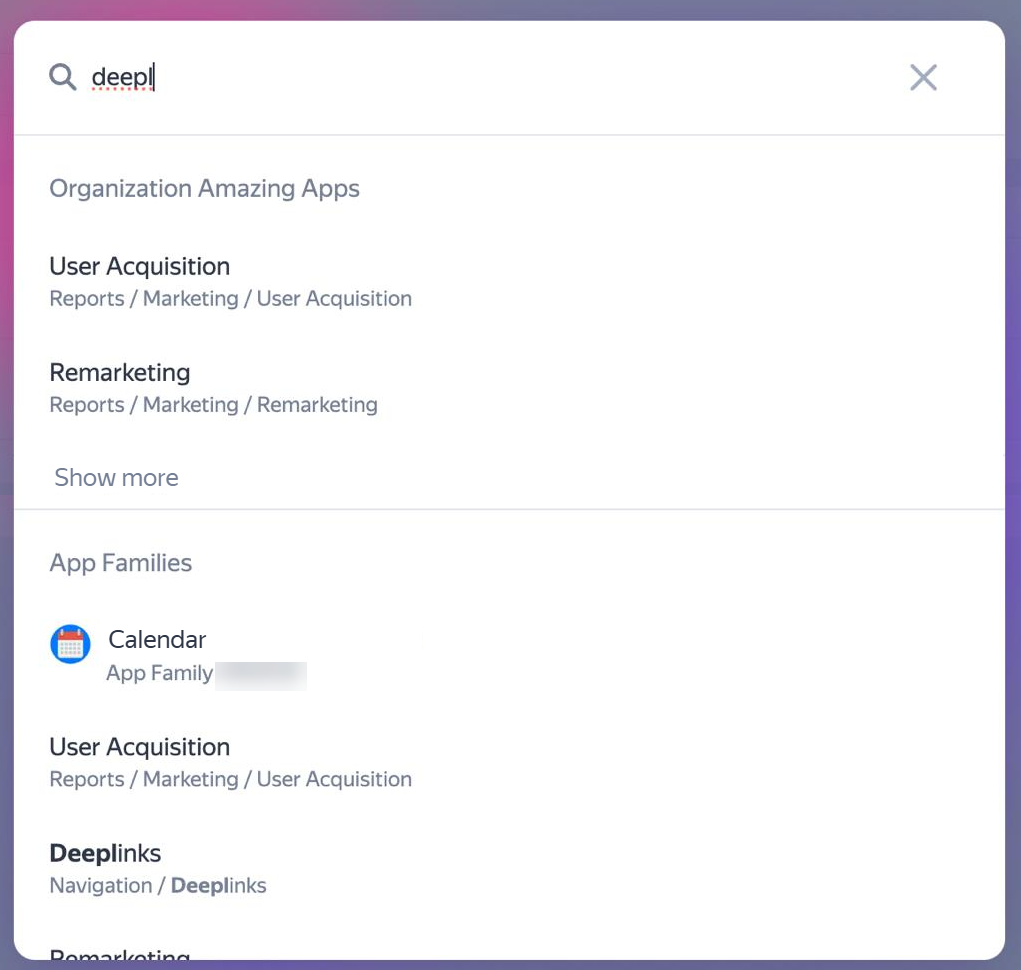
You can look up any term, report, metric, workspace, or setting in the search bar. To do this, click Search at the top of the page. The button is available from any section of the service.
In the search window, enter a word or string to search for.
Search works across reports and workspaces of the entire organization or specific app families.
The output first shows links found in the Reports, Workspaces, Settings, App families, and other sections. To view other results, click Show more. One search can't cover more than five app families.
To navigate to a found item, click the corresponding line in search results.
AI assistant
The AI assistant can help you with any questions about the service. Get started by clicking in the upper-right corner.
The AI assistant can:
- Explain terminology
-
Sample question: What's the difference between an active user and a new one?
The AI assistant will give you the definitions, highlight the differences, and explain them through real-life examples.
- Tell you about service features
-
Sample question: How to use trackers?
The AI assistant will list basic features and attach links to the documentation.
- Provide step-by-step instructions
-
Sample questions: How do I add a new app? How do I set up event tracking?
The AI assistant will walk you through each step, telling you exactly what to do.
- Answer questions about the latest updates
-
Sample question: What's the current SDK version for Android?
The AI assistant will specify the current version and attach a link to the latest releases.
- Give you up-to-date statistics
-
Sample questions: How many app installs were there last week? How much did I earn yesterday from in-app purchases? Which countries bring the most revenue?
The AI assistant will generate a link to a report with the required metric and time period. You can follow the link to further analyze the data.
- Help you resolve data issues
-
Sample questions: Why does the data here differs from the Google Analytics data? Why can't I see install events for the past week?
The AI assistant will list possible reasons and provide solutions.
- Explain how to make the most of the service
-
Sample questions: How do I increase app monetization?
The AI assistant will suggest hypotheses and ideas for discussion.
The AI assistant can't:
- Act on your behalf: change account settings, create trackers or promotion campaigns.
- Manage API keys and access permissions.
- Assist in financial or legal issues.
- Grant access to other users' data.
Support chat
If you can't find the information you need, ask in the support chat. You can open the support chat from any documentation page by clicking the icon  in the bottom right corner.
You can also submit a request via the feedback form in the documentation or in the upper-right corner of the Boost interface: → Contact support.