Manage access
To allow users to start working with Analytics module, you need to grant them access permissions for app families.
-
Go to Analytics → Access to analytics.
-
Make sure you are in organization mode, not in a specific app family (the All app families item is selected).
-
Select an app family and click
 → Grant access or click Add user in the upper right corner. The access granting window will open.
Access granting window
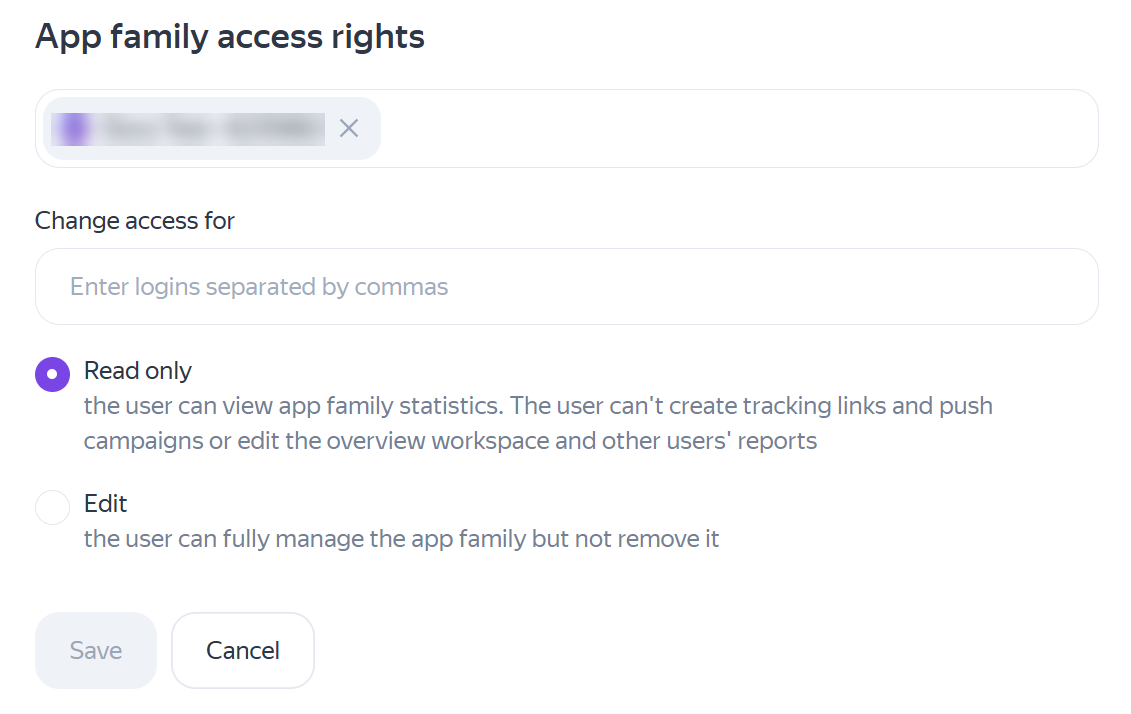
- In the top field, specify the app family name or select All apps to grant access to all app families in the organization.
Access to all app families
-
In the Change access for field list the emails of employees you want to grant access to the app family.
-
Select permissions — Read only or Edit. For more information, see Access rights.
-
Click Save.
-
Go to Analytics.
-
At the top, select an app family.
-
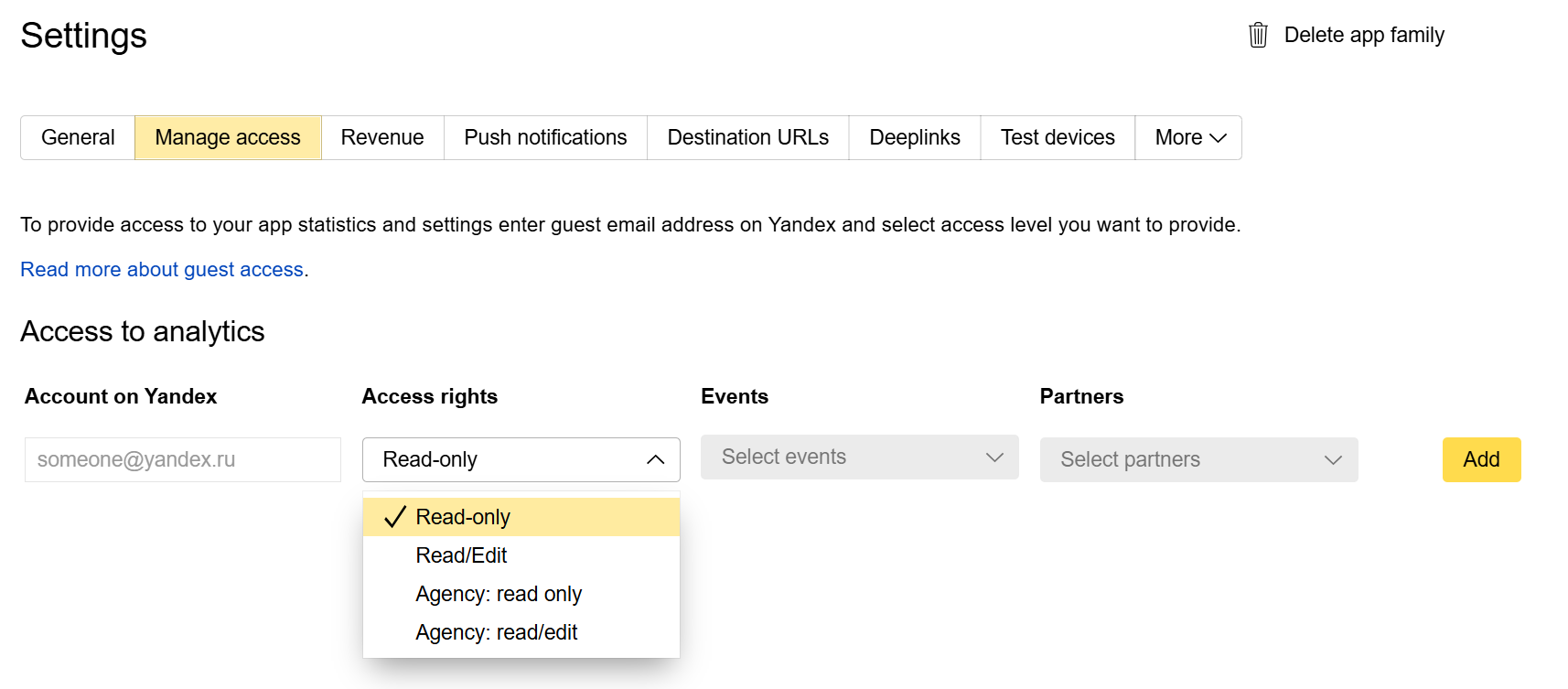
In the left menu, go to Settings → Access. The Manage access tab will open with a list of users and their access permissions.
-
In a new row, specify the email of the user you want to grant permissions to.
-
Select the access level. For more information, see Manage access.
-
For agency employees, you can specify the events and partners whose statistics they will have access to.
-
Click the Add button.
Granting access
Learn more
If you didn't find the answer you were looking for, you can use the feedback form to submit your question. Please describe the problem in as much detail as possible. Attach a screenshot if possible.