Request flow
There are two stages in the request flow for the Analytics module Logs API:
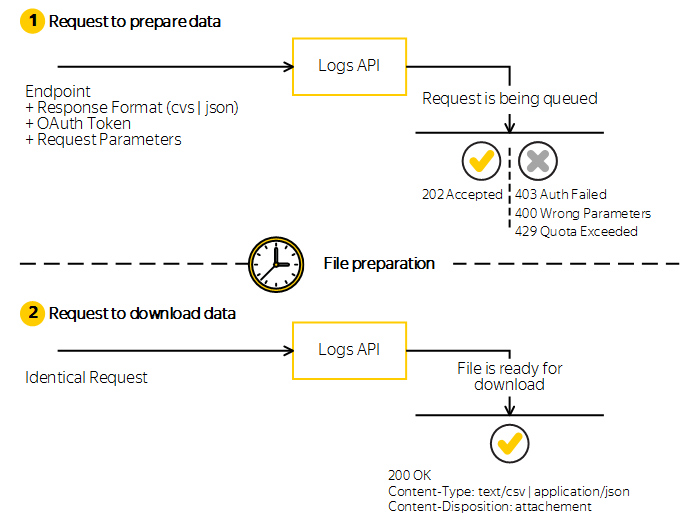
Request to prepare data
The Analytics module Logs API accepts the request and puts it in the queue. If the request is processed successfully, Analytics module prepares a file for export. In this case, the API returns the HTTP 202 Accepted status. If the request resulted in an error, the API returns the appropriate response status, and the HTTP message body contains the error description.
Note
Requests in the queue are processed sequentially (each subsequent request is executed strictly after the previous one is completed).
While the request is being processed and the file is being prepared, all identical requests (with the same parameters) will return the HTTP 202 Accepted status.
Sample request:
GET /logs/v1/export/installations.json HTTP/1.1
Host: api.boost.yandex.com
Authorization: OAuth <your_token>
where <your_token> is an OAuth token that you can obtain by following this guide.
Response example:
HTTP/1.1 202 Accepted
Content-Type: text/plain

Wait for result
To get compressed data, send the HTTP Accept-Encoding: gzip header.
Request to download data
The request to export data is identical to the request to prepare data. If the request to prepare the file is complete, for the next identical request, the Logs API returns the 200 OK status. The results file is ready to be downloaded.
The file is available for download for 24 hours at the URL of the initial request. For a repeat request after 24 hours has passed, the request is put in the queue for processing and preparing a new file.
You can force regenerating the file using the HTTP Cache-Control header:
- To generate a new file, send the
Cache-Control: no-cacheheader in the request. - To download a file that was generated within the last N seconds, send the
Cache-Control: max-age=Nheader in the request. If the file was created more than N seconds ago, Analytics module generates a new one. - To download the last generated file (if one exists), don't send the
Cache-Controlheader in the request.
How to improve data availability
To improve the reliability of exports, we recommend specifying skip_unavailable_shards=true in all Logs API requests. This parameter allows you to retrieve data even if some shards are unavailable. By default, it's set to false.
If all shards are available, the export will be complete. If some shards are unavailable, the Logs API returns data only from available shards, so the export may not include all records.
To check the completeness of your exports, save the request parameters and HTTP response headers when downloading a prepared file. The Shards-Unavailable header indicates the percentage of unavailable shards:
- If the value is 0, all shards were available.
- If the value is greater than 0, mark the export as incomplete to retry the request later.
Check the current availability of the Logs API using the request:
GET /management/v1/logsapi/status
If logs_api_availability_status is disabled, check again later. When the status changes to enabled, repeat the export request with the same parameters. Make sure that the Shards-Unavailable header in your prepared file is 0, then replace the old data with the new export to avoid duplicates.
Export data through the Analytics module interface
You can export data to a file through the Analytics module interface. To learn more, see Exporting data to a file.
If you didn't find the answer you were looking for, you can use the feedback form to submit your question. Please describe the problem in as much detail as possible. Attach a screenshot if possible.