Dashboard and widgets
The Boost dashboard is located on the Overview page, which is the main Boost workspace that opens when you log in or click the first menu item. For information about your revenue, see the Ad Overview section.
To learn more about navigating the Overview page, see the relevant section of the Analytics module.
Overview dashboard
You can have multiple statistics widgets on your Overview — add them manually or use a preset template. If you can't find a suitable template, select one that fits your needs best and edit it as needed.
Configuring widgets
For more information about managing widgets in Boost Analytics, see the relevant section of the Analytics module.
Creating a widget
You can add widgets to the dashboard to display a report, such as your total and average revenue. To change the widget's view, click  in the upper-right corner.
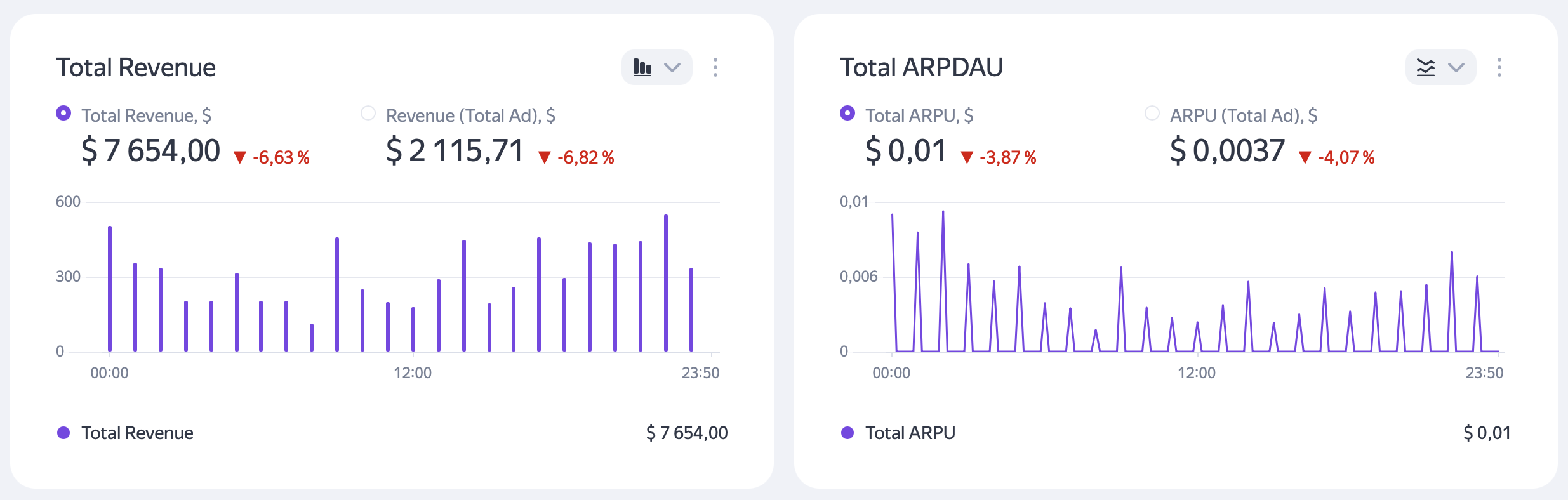
You can add widgets under Ad Monetization → Report builder or directly from the dashboard page: to do this, click Add in the upper-right corner, then select + New widget. In the window that opens:
- Name your widget.
- In the dropdown list, select the report to use for the widget.
- Select the widget type: chart, table, metric, or multiwidget.
- Configure the display of metrics, dimensions, and filters (segmentation).
- Click Create.
If you delete a report from the lists of your saved reports, its widget will be deleted from the dashboard (from the Overview page).
Editing
At the top right of the widget, click → Edit.
In the same menu, you can delete the widget or change its type.
Using the  dropdown list, you can switch between line and bar chart views.
Configuring the dashboard
You can rearrange widgets on the dashboard by dragging them or using the controls that appear when you hover over the right edge of a widget row to move the entire row.
To copy the dashboard or export to PDF, click in the upper-right corner of the Overview page.
Ad Overview
The Ad Overview section contains a non-editable “Revenue widget” and information widgets with training materials, news, and other important messages from the Yandex.
Revenue widget
Widget data is generated based on statistics and is only available to resource owners. For users with the Partner's assistant role, the revenue for a resource that they don't own will always be zero.
By default, the data is displayed in the payment currency. You can select a different currency at the top right of the widget.
Note
All currency amounts are calculated at the exchange rate of the Central Bank of Russia as of the immediate date.
The widget contains basic information about your revenue:
-
Revenue for the current day.
-
Revenue for yesterday.
-
Revenue for the current calendar month.
-
Balance as of the last day of the previous month: Accumulated and payable (provided the payment threshold has been reached) revenue as of the last day of the previous month. The balance amount may slightly change due to statistical adjustments. Starting March 1, 2024, the balance amount in the payment currency is calculated at the exchange rate of the Central Bank of Russia as of the immediate date.
The balance can have the following statuses:
- The threshold has not been reached: The status is displayed if your total accumulated revenue didn't reach the payment threshold last month. In this case, this revenue is added to the revenue of the following months until the total revenue amount reaches the threshold.
- Payment preparing: This status is displayed from the first day of the current month until the payment is made, provided your revenue reached the payment threshold last month.
- Paid: This status is displayed as soon as your money is paid out and until the end of the current month. The time it takes for the money to be credited to your account depends on the bank or payment system.
The balance amount displayed in the widget stays relevant for a maximum of two years since the beginning of the billing period.
-
The amount of the last successful payment and that of all upcoming payments. The amount of the last successful payment is not displayed if the payout period exceeds two years.
If invalid impressions are detected, the amounts in the widget may change.
Note
The balance in the widget is given before taxes. If you are registered in the Boost as an individual resident of the Russian Federation, the Personal Income Tax will be deducted from the balance amount upon payout.
For more information about thresholds and payouts, see Documents and payments.