File app-ads.txt
In app-ads.txt, app owners indicate the ad networks and their partners that can sell placements in the app. Developers publish app-ads.txt manually.
The ads.txt protocol is an online advertising standard developed by the Interactive Advertising Bureau (IAB). Ads stands for authorized digital sellers.
Why publish app-ads.txt
The Boost displays ads from direct Boost advertisers and other demand-side platforms (DSP). This means that more advertisers compete for the right to display ads in your app, and ads are matched to users from different countries and regions. As a result, your monetization revenue grows.
Some DSPs use app-ads.txt to check which ad networks are authorized: such ad networks can display in-app ads and don't buy ad impressions if app-ads.txt is missing.
Publishing app-ads.txt also serves as a method to confirm access to the app. The Boost uses app-ads.txt to check that ad units in the app are configured by users who actually have access to it.
If the app-ads.txt file has already been published
Add the lines from the Boost to the published file. You can obtain a special code snippet in the interface. From the left menu, go to Ad Monetization → User settings → Main and click app-ads.txt.
How to create and publish app-ads.txt
Step 1. Check or specify the URL of the developer's site in the app store
Make sure that the current site address is indicated in the app stores. Ad platforms will use it to search and verify app-ads.txt.
If you don't have your own site, we recommend creating one.
Step 2. Get the required lines for app-ads.txt
You can obtain a special code snippet through the Boost interface. To download the file with the required lines, go to Ad Monetization → User settings → Main and click app-ads.txt.
Note
If you're monetizing your app with multiple ad networks, we recommend adding the code snippets from each ad network to the file. To do this, contact each ad network to request the lines for your app-ads.txt.
Line structure
The line contains the domain of the ad platform, the partner ID, and the type of relationship with the seller.
Example: example.com, 1234, DIRECT.
The following seller relationship types are available:
- DIRECT: Ad networks you work with directly.
- RESELLER: Partners that use third-party intermediaries to sell media kits.
Avoid adding information about companies you don't work with to the code.
Step 3. Create a file
Open any text editor (such as Notepad), list the lines from all ad networks, and save the file as app-ads.txt.
Step 4. Upload the file
Add the app-ads.txt file to the root directory of the developer's site. A root directory is the folder that follows the top-level domain (such as example.com/app-ads.txt).
To check if the file was uploaded correctly, add app-ads.txt to the app domain name in your browser's address bar (such as example.com/app-ads.txt). If the file is published correctly, you'll see its contents.
Step 5. Update the file regularly
Ad networks' partners may change. We recommend regularly checking that your app-ads.txt file is up to date. For iOS and Android apps, you can do this in the Boost interface.
Statuses of app-ads.txt
For apps in Google Play and the App Store, the Boost checks the app-ads.txt file every 24 hours on the developer's site specified on your app's store page. If the file isn't found or contains errors, the status will show this. Solve the issue by following the steps for your status:
|
Status |
How to solve the issue |
|
There is no data about the file app-ads.txt, since the developer’s website was not found |
Add the developer's site to the app's page in Google Play or App Store. Boost will use it to search and verify app-ads.txt. Make sure that the file is added to the site's root directory. If the site is specified but you still see this status in the interface, contact support. |
|
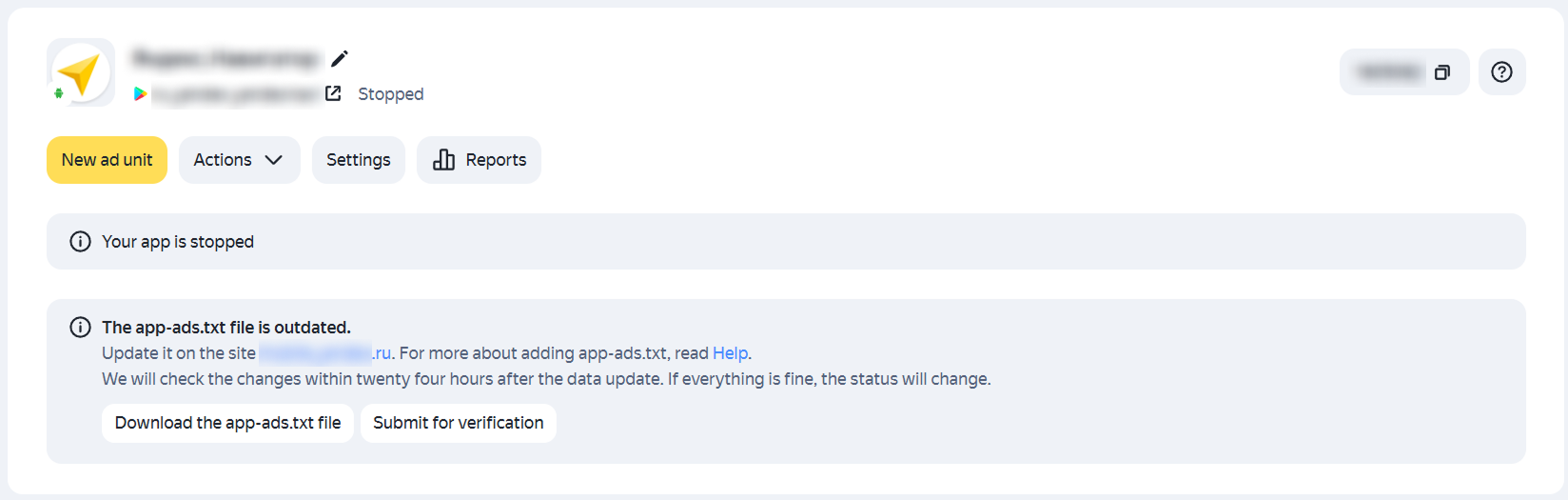
File app-ads.txt outdated |
Update the app-ads.txt file on the developer's site. To do this, copy the missing lines from the YAN to your file and upload it to the developer's site. Then click Send for verification in the YAN interface. |
|
File app-ads.txt not found on the site |
Add the app-ads.txt file to the root directory of the developer's site by following this guide. The file must be placed directly in the root directory, which is the folder directly after the top-level domain. The file's address should look like this: If the file is located at the specified address but this status appears in the interface, contact support. |
How it looks in the interface
Note
Once the issue is resolved, the status in the interface will update within 24 hours.