Add an app
In the Boost interface, you can add and monetize apps from the App Store, Google Play, and other stores.
Step 1. Add an app
-
In the Boost interface, go to Ad Monetization → Applications.
-
This opens a page with a list of apps. At the top right, click New app.
-
Find your app by the link, name, or package in Google Play or the App Store and click Save.
How it looks in the interface
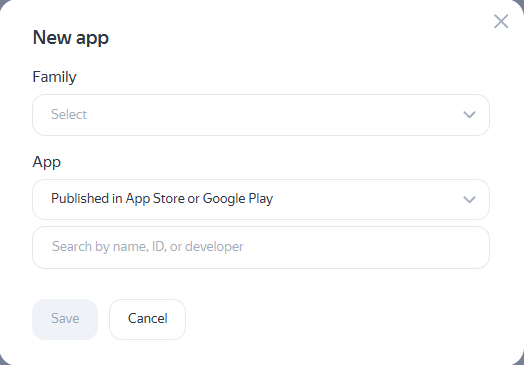
You can create and connect ad units right away, but ad impressions will only start after your access to the app is verified and moderation is completed.
Supported stores
- In the Boost interface, you can add apps from the alternative stores:
- Huawei AppGallery
- Xiaomi (getapp.store)
How to add an app
-
In the main menu, go to Ad Monetization → Applications.
-
This opens a page with a list of apps. At the top right, click New app.
-
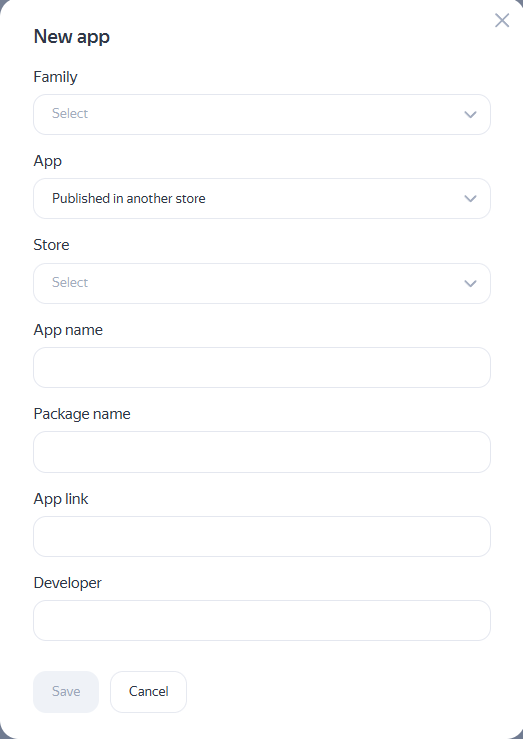
Under the search bar, click Published in another store.
How it looks in the interface
-
In the window that opens, enter the app details.
How to fill in the fields
-
Store: Select the store where the app is published.
-
App name: Enter the app name to be used in the Boost interface.
-
Package name: Specify the app package name (a line of the
com.example.myapplicationtype which is defined in the app configuration). -
App link: Add a link to the app in the store.
-
Developer: Specify the name of the app developer as it's specified in the store (if any).
-
-
Click Save.
You can create and connect ad units right away, but ad impressions will only start after your access to the app is verified and moderation is completed.
-
In the main menu, go to Ad Monetization → Applications.
-
This opens a page with a list of apps. At the top right, click New app.
-
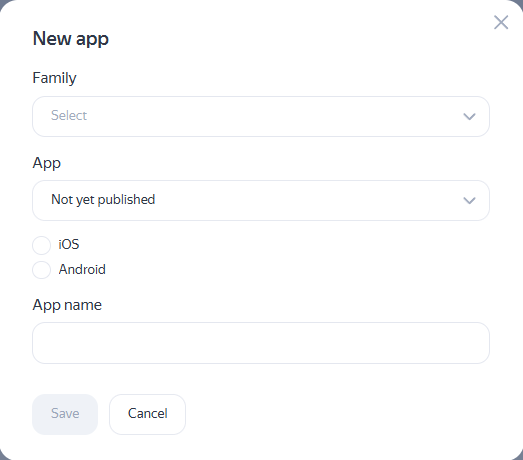
Under the search bar, click Not yet published.
How it looks in the interface
-
Select the platform and specify the name of the app in the interface Boost. Click Save.
The app will be added with the Test mode status. After publishing the app, add a link to it in the App Store or Google Play or specify the app data from another store.
You can create and connect ad units right away, and test ad impressions can begin. You don't receive revenue for such impressions. Real ad impressions will start after the app is published, your access to it is verified, and the app passes moderation.
Step 2. Confirm access to the app
Once the app is added, you need to confirm access to it. The developer's contact details (email or site) specified in the app store are used to confirm access.
If the developer's email or site is not provided, add them to the special fields or description of the app, depending on the store:
|
Store |
Where data needs to be provided |
|
the App Store |
|
|
Google Play |
In special fields. |
|
Other stores |
In the special fields or app description. |
After filling in the developer's details, go back to the Boost interface and select how you wish to verify access.
Via a unique code
Alert
The options are available for apps published on the App Store, Google Play.
- Click Send the code.
- Open the email account specified in the store and find the message with the code from the Boost.
- Return to the Boost interface and enter the code into the special field.
- Click Confirm.
The code will be sent to the email specified in the app store. If you haven't received the email, check the Spam folder or click Send the code again.
If your app is published in a different store or the developer data is not displayed in the Boost interface, contact support to verify access.
Via the app-ads.txt file
Alert
The options are available for apps published on the App Store, Google Play.
In this case, access is verified using the developer's site specified in the store.
- Download the app-ads.txt file from the Boost interface.
- Upload the app-ads.txt file to the root directory of the developer's site. A root directory is the folder that follows the top-level domain (such as
example.com/app-ads.txt). - Go back to the Boost interface and click Send for verification.
- Download the app-ads.txt file from the Boost interface.
- Copy all the lines from the downloaded file and add them to the app-ads.txt file that has already been published.
- Go back to the Boost interface and click Send for verification.
The app-ads.txt file is sent for review once a day. If you added lines from the Boost to the file less than 24 hours ago, we recommend clicking Send for verification the next day.
To learn more about creating a file and its statuses, see app-ads.txt file.
If your app is published in a different store or the developer data is not displayed in the Boost interface, contact support to verify access.
Step 3. Wait for moderation results
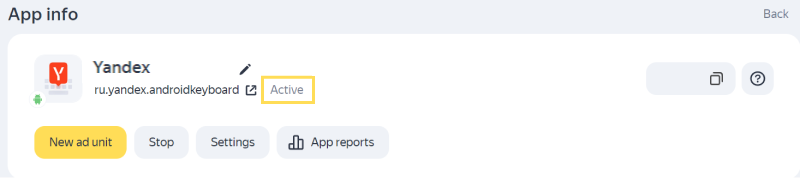
The moderation process for mobile apps typically takes no more than two days. However, it can take longer in some rare cases. After the review is complete, you'll see a notification about its outcome in the Notifications tab of the Boost interface. If the app passes moderation, its status changes to Active.
How it looks in the interface
If the app fails moderation, its status will change, and you'll see the rejection reason.
How it looks in the interface
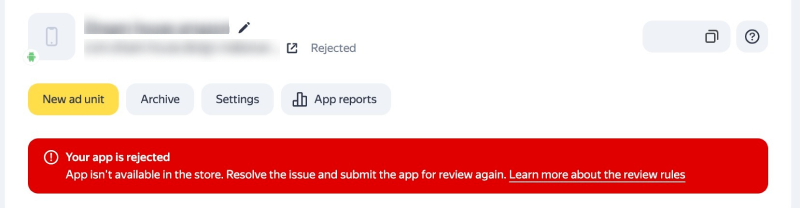
To learn more about the moderation process and app statuses read the sections:
Frequently asked questions
What should I do if the app is published in multiple stores?
We recommend adding apps from each store separately and using different ad units for apps from different stores.
This way, you can:
- Get more accurate statistics in reports.
- Select and optimize ads based on the parameters of a specific app and ad unit.
- Increase audience reach.
- Gain access to a wider pool of advertisers.
- Continue monetizing your app even if it's blocked in one of the stores.
How do I add an app to serve InStream ads?
Send a request to our support to add your app as a video resource. To learn more, see InStream ads.
What should I do if the store I'm on isn't in the list?
Send a request to our support team to add your app.
What should I do if the app failed moderation?
-
Check the reason for rejection.
-
If necessary, fix any technical issues.
-
Resubmit the app for moderation:
- Open the Ad Monetization → Applications tab.
- Click View next to the app name in the list.
- Press Actions → Send to moderation.