Native ads
Native ads is advertising that looks to mobile app users as natural as the original content. The unit with native ads displays Combinatorial ads, for which you can customize the set of elements and their design.
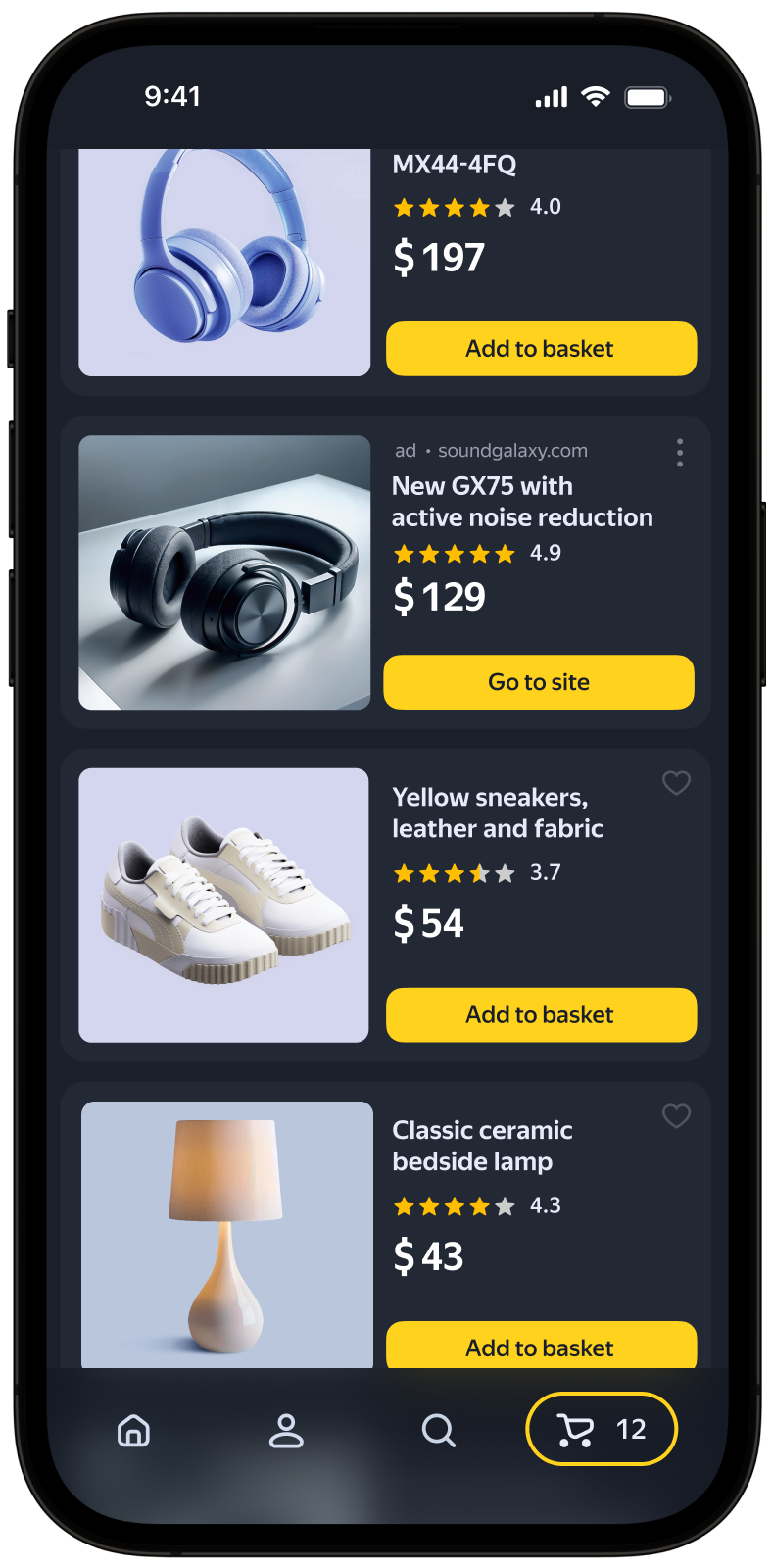
You can set the number of ads in a unit when you're connecting it to the app. If you have an Android app and use direct integration via the SDK, you can also configure ad impressions in the slider: this is a set of ads that alternate as the user scrolls through them.
Creating ad blocks
-
In the main menu, go to Ad Monetization → Applications. Click next to the app in the Ad units column and select Add.
-
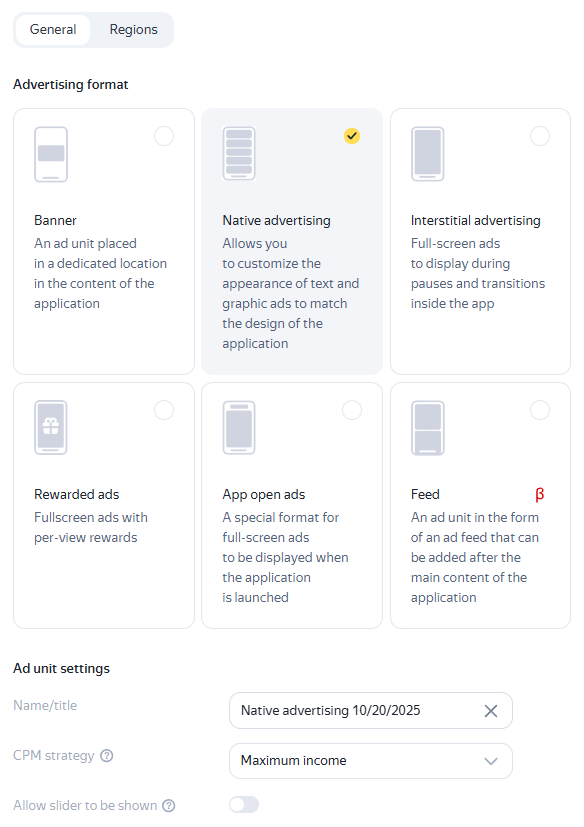
Select the Native design ad format.
-
Enter a name for the ad unit — it'll make it easier to find the unit in the interface Boost.
-
Define CPM settings. In the CPM strategy field, select:
-
Maximum revenue: If you don't want to limit the cost of an impression in the ad unit.
-
eCPM floor: If you want to set the minimum cost of an impression in the ad unit. When selecting this option, also specify the floor value in rubles, US dollars, or euros. You can change the floor currency in your account settings.
How it looks in the interface
-
-
Click Save.
The new unit with a unique ID will appear in the list on the app page. The unit ID (
ID) consists of the product ID (R-M), app ID (PAGE_ID), and the unit index number.Note
One app can have no more than 200 active ad units. Move unused units to the archive. If you need to add more than 200 units, contact support.
-
Integrate the ad unit into the app depending on the monetization method:
- To serve ads from the Boost only, follow the instructions to integrate the unit:
- To serve ads within Yandex Mobile Mediation, integrate the unit using the instructions:
- If you're using third-party mediation, connect the unit to the unit created for the Boost in a third-party mediation service.
For more information about integrating ad units, see Monetization methods.
-
In the main menu, go to Ad Monetization → Applications and open the app page. Under the app name, click New ad unit.
-
Select the Native design ad format.
-
Enter a name for the ad unit — it'll make it easier to find the unit in the interface Boost.
-
Define CPM settings. In the CPM strategy field, select:
-
Maximum revenue: If you don't want to limit the cost of an impression in the ad unit.
-
eCPM floor: If you want to set the minimum cost of an impression in the ad unit. When selecting this option, also specify the floor value in rubles, US dollars, or euros. You can change the floor currency in your account settings.
How it looks in the interface
-
-
Click Save.
The new unit with a unique ID will appear in the list on the app page. The unit ID (
ID) consists of the product ID (R-M), app ID (PAGE_ID), and the unit index number.Note
One app can have no more than 200 active ad units. Move unused units to the archive. If you need to add more than 200 units, contact support.
-
Integrate the ad unit into the app depending on the monetization method:
- To serve ads from the Boost only, follow the instructions to integrate the unit:
- To serve ads within Yandex Mobile Mediation, integrate the unit using the instructions:
- If you're using third-party mediation, connect the unit to the unit created for the Boost in a third-party mediation service.
For more information about integrating ad units, see Monetization methods.
Actions with units
In the main menu, go to Ad Monetization → Ad Units. Pick an ad unit from the list and select the necessary action:
- Duplicate: Create another unit in the ad unit list with the same settings but with a different ID.
- Send to archive: Send the unit to the archive. To restore an ad unit, find it using the status filter and click Restore.
Regional settings
You can restrict ad impressions in a unit for app users from a specific region. To do this, open the ad unit on the app page or in the ad unit list and go to Geography.
In the region tree, select one or more regions. Set the eCPM floor in selected currency without VAT in the eCPM field. Subregions inherit the CPM floor from the top level region.
To fully disable ad impressions in a region, select it and choose the Block option.
Rules for placing units with native ads
Alert
By using ad units with native ads, you accept the risks described in the Offer. Before you start configuring your unit, make sure to read the current advertising legislation, including the requirements set for mandatory advertisement elements and their size.
General rules for placing units with native ads
- The ad unit must contain all the mandatory elements.
- You can only place elements (mandatory and additional) if all the rules and restrictions specified in the tables below are met.
- The ad unit must not be fully clickable. The tables below show which elements should be clickable.
- All block elements should be visible and easily discernible to users. The background image must not obstruct the reading of text information, labels, and notices.
- You can't change the links of any elements (link to the advertiser's site, sitelinks, and other links).
- If an ad unit is on a single screen, it must not be reloaded more often than once every 30 seconds.
- Clicking the ad unit must not be the only possible action on the page. It's prohibited to artificially generate impressions, clicks, calls, or installs, whether manually or through any automated means (learn more in the User Agreement).
Mandatory advertising elements and rules for their use
|
Mandatory element |
Terms and restrictions |
|
Age rating and indication that the unit is an ad |
If the age rating is required for the selected category under the “Advertising Law”, the rating is added automatically. It is not allowed to modify text or a link provided by Yandex. |
|
Other warnings |
Changes are not allowed in warning texts. Text alerts should not occupy less than 10% of the ad area. |
|
Title (the name of the advertised app) |
The title can be up to 56 characters long, including spaces and punctuation marks. The title must be clickable. The title text can't be cut off, it must be shown in full. |
|
Image |
The image must be clickable. The image can't be enlarged, but it can be reduced without changing the aspect ratio. You can crop the image by no more than 25% and only relative to the center of the image. |
|
Action button |
The call to action button should be clickable. You can't change the button text. |
|
App icon |
Only required for mobile app ads. The icon must be clickable. The icon can't be enlarged or cropped, but it can be reduced without changing the aspect ratio. |
|
Price |
Only required for mobile app ads.
|
|
Menu icon |
Using the For the SDK version 5.2.0 or higher, impressions without this element are not counted. |
|
Domain |
The domain is required to comply with “advertising” laws. For the SDK version 5.2.0 or higher, impressions without this element are not counted. The domain of the advertiser's site must be clickable. You can't change the domain text, but you can truncate it after 20 characters and add an ellipsis ( |
 menu icon, users can report an ad or get more information about the advertiser.
Additional advertising elements and rules for their use
|
Additional element |
Terms and restrictions |
|
Favicon |
The advertiser's site icon must be clickable. The icon size is 16 × 16 pixels. You can't change the size or the aspect ratio of the icon. |
|
Rating |
You can't edit the rating. |
|
Number of ratings |
Number of ratings for mobile app ads. You can't edit the number of ratings. |
|
Text |
The ad text can be up to 75 characters long, including spaces and punctuation marks. It may be truncated after 37 characters, but you can't edit the content and change case. The last visible word must be displayed in full followed by an ellipsis ( |
Cost per one thousand viewable impressions of an ad unit. An impression is considered viewable if at least one pixel of the ad unit was in the viewable area of the screen.