Feed
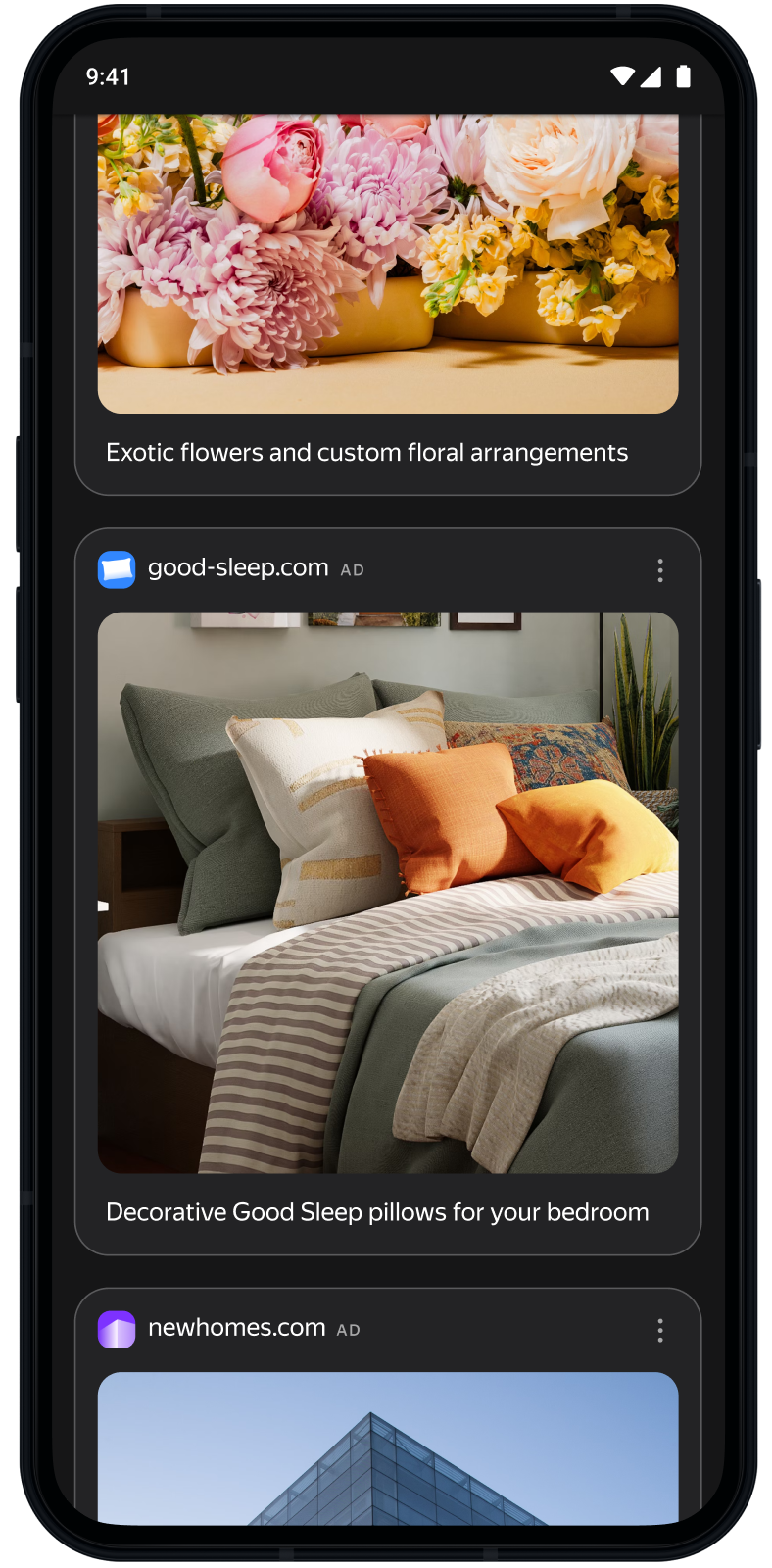
Feed is an ad unit that serves Combinatorial ads. You can place it after or instead of your app's main content. Feeds may contain dozens of ads loaded in parts, multiple ads at a time.
Note
This ad format is only available for Android apps.
Creating ad blocks
Warning
For an Feed unit, only ads from the Boost are available. You won't be able to connect any ad exchanges.
-
In the main menu, go to Ad Monetization → Applications. Click next to the app in the Ad units column and select Add.
-
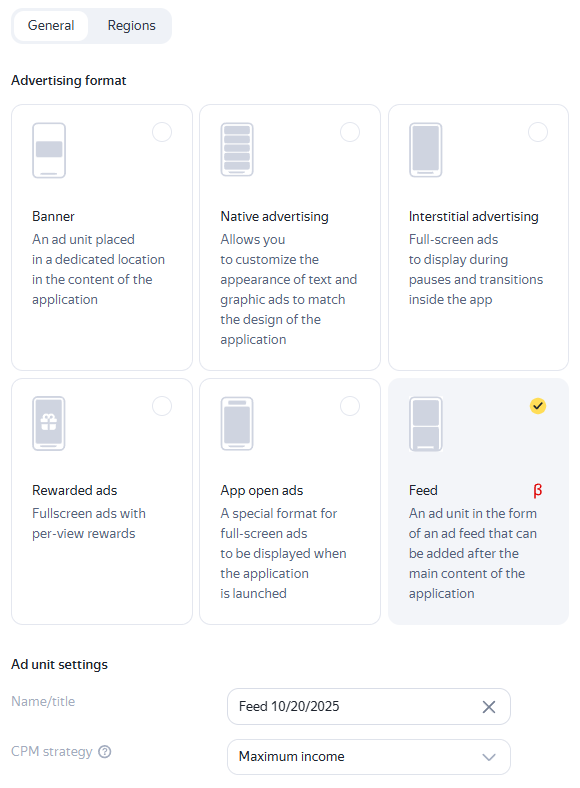
Select the Feed ad format.
-
Enter a name for the ad unit — it'll make it easier to find the unit in the interface Boost.
-
Define CPM settings. In the CPM strategy field, select:
-
Maximum revenue: If you don't want to limit the cost of an impression in the ad unit.
-
eCPM floor: If you want to set the minimum cost of an impression in the ad unit. When selecting this option, also specify the floor value in rubles, US dollars, or euros. You can change the floor currency in your account settings.
How it looks in the interface
-
-
Click Save.
The new unit with a unique ID will appear in the list on the app page. The unit ID (
ID) consists of the product ID (R-M), app ID (PAGE_ID), and the unit index number.Note
One app can have no more than 200 active ad units. Move unused units to the archive. If you need to add more than 200 units, contact support.
-
Integrate the ad unit into the app. To learn more about how to configure this, see the Yandex Mobile Ads SDK documentation.
-
In the main menu, go to Ad Monetization → Applications and open the app page. Under the app name, click New ad unit.
-
Select the Feed ad format.
-
Enter a name for the ad unit — it'll make it easier to find the unit in the interface Boost.
-
Define CPM settings. In the CPM strategy field, select:
-
Maximum revenue: If you don't want to limit the cost of an impression in the ad unit.
-
eCPM floor: If you want to set the minimum cost of an impression in the ad unit. When selecting this option, also specify the floor value in rubles, US dollars, or euros. You can change the floor currency in your account settings.
How it looks in the interface
-
-
Click Save.
The new unit with a unique ID will appear in the list on the app page. The unit ID (
ID) consists of the product ID (R-M), app ID (PAGE_ID), and the unit index number.Note
One app can have no more than 200 active ad units. Move unused units to the archive. If you need to add more than 200 units, contact support.
-
Integrate the ad unit into the app. To learn more about how to configure this, see the Yandex Mobile Ads SDK documentation.
Actions with units
In the main menu, go to Ad Monetization → Ad Units. Pick an ad unit from the list and select the necessary action:
- Duplicate: Create another unit in the ad unit list with the same settings but with a different ID.
- Send to archive: Send the unit to the archive. To restore an ad unit, find it using the status filter and click Restore.
Regional settings
You can restrict ad impressions in a unit for app users from a specific region. To do this, open the ad unit on the app page or in the ad unit list and go to Geography.
In the region tree, select one or more regions. Set the eCPM floor in selected currency without VAT in the eCPM field. Subregions inherit the CPM floor from the top level region.
To fully disable ad impressions in a region, select it and choose the Block option.
Cost per one thousand viewable impressions of an ad unit. An impression is considered viewable if at least one pixel of the ad unit was in the viewable area of the screen.